
I’m not sure I’ve ever gotten as much inbound as I did from Wednesday’s “I spent 45 minutes building the AI that might replace me” post.
A lot of that inbound was people who wanted to discuss the implications of AI in investing: how long we as humans stood a chance against our nascent AI overlords, if AI was better at one type of investing versus another (i.e. it’s probably very good at factors, but can it do event driven?), etc.
But the majority of the inbounds were from people with a simple question: How can I start using AI tools for investing?
So today, the basics. Quick disclaimer up front: I’m completely self-taught when it comes to these tools, and I am sure there are thousands of 24 year old engineers at big tech firms who would look at the primitive ways I’m using AI and laugh their heads off.
But I have been investing “professionally” for over a decade now, and AI has dramatically improved my process over the past few months. So I’m simply sharing some tips and tricks that have helped me improve; I am by no means claiming these are perfect or that there aren’t better ways to do these things. I’m sure there are, and I’d love it if you told me if you knew of any!
So when I say “using AI,” I mostly mean “using Claude Cowork to make you a faster, sharper investor with tools and research you didn’t know were possible.” That’s a different use case than I would have talked about even six months ago; back then I was mostly using AI as a hyper-intelligent Google: research questions, industry overviews, slide drafts, etc.
Useful, but limited to basically being my best senior analyst (who I couldn’t quite trust fully due to worries hallucinations). Cowork changed that; instead of just using it as a researcher, I’m telling Cowork exactly what I want and having it build tools for me to do that, in a way we can iterate on and improve over time.
If you don’t know what Cowork is or haven’t tried it yet: download the Claude desktop app and open it to Cowork. Here’s a very basic Cowork overview if you want one, and Anthropic has a free training portal (Skilljar) that walks you through a bunch of Claude use cases. All of those will help, but you honestly don’t need any of them. The best way to learn Cowork is to simply start using it. Pick something you want done, ask Claude to do it, and you’ll see how powerful Cowork can be pretty quickly.
That said, a little setup can go a long way to helping you down the road. One of the problems I found I had is that I use it so much that a lot of old research was getting lost if I wasn’t very careful to save everything down. I think I found a fix to that problem, and I’m going to share it with you both because I think it’ll be useful and because it should help jump start your Cowork journey if you’re starting from literal zero.
The key to Cowork (for me at least) is projects. Projects are individual folders within your Cowork that will remember and reference past research inside the project and (importantly) that allow you to set up rules the project will always follow. So if you’re working in a project you can say something like “every time I ask you to pull information from a financial filing, please automatically convert it to US dollars” and going forward every time you pull financials in that project (and only that project) it will follow that rule.
What’s great about projects is that you can use them to iterate over time. So, for example, you can ask Claude to research a company in the project, and then when it returns something you can tell it “you forgot to summarize the risk section; please remember to do that for every company going forward” and over time Claude will learn from all those prompts.
So that’s projects in theory. Here’s what makes them powerful in practice: say my favorite set up is companies where the CFO has been buying stock on the open market in the past three months. I can build a project, tell it that’s what I care about, and from then on every company I research in that project will automatically flag any recent CFO insider buying.
Let me walk you through setting up a project for research; doing so will both help you understand projects and show how I’ve used projects to better track my research. Below is a screenshot of my Claude Cowork; I’ve pressed projects (in the left column) and “new project” (in the top right) to bring this project up. You’re going to want to press “start from scratch”.
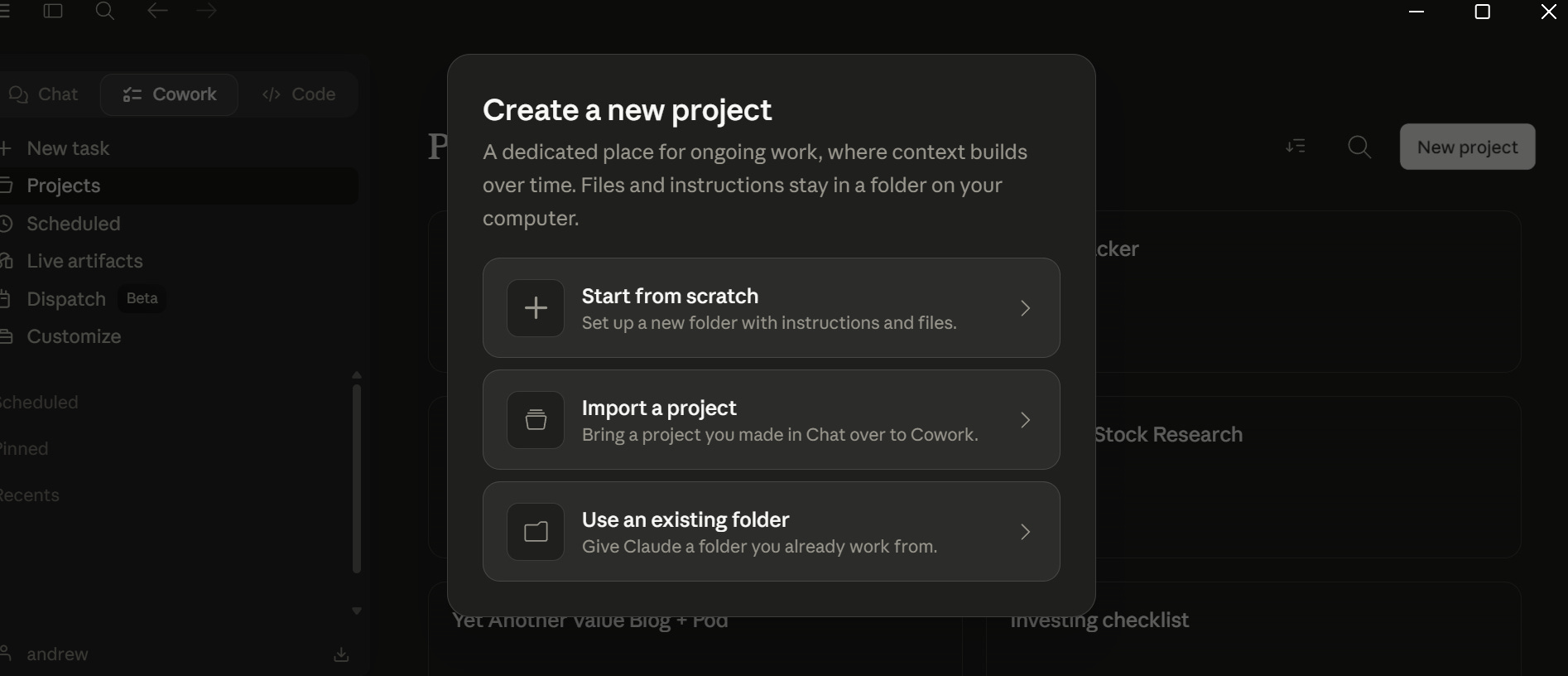
Press “start from scratch” and you’ll get the prompt below.
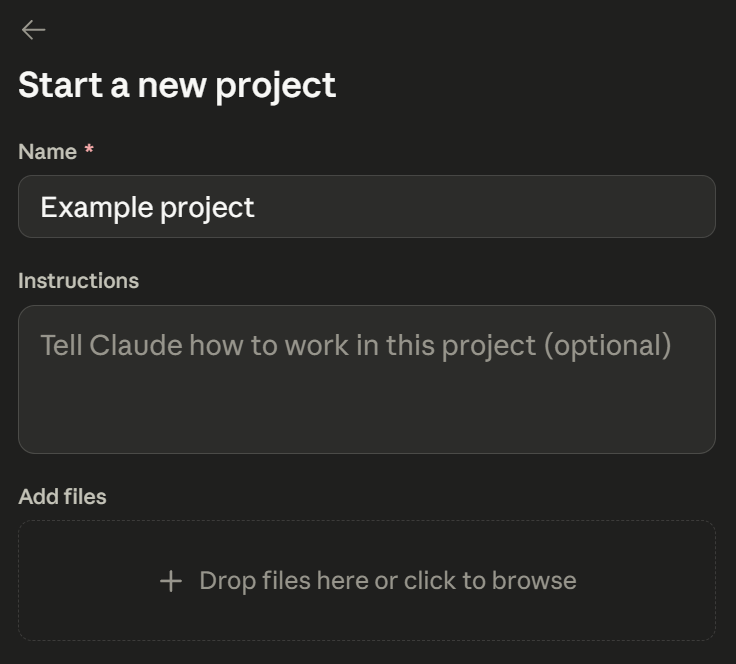
That instructions box is the most critical one: Claude will remember it and treat everything that you do in the project that way going forward. So I’d encourage you to get as detailed as you can there. Heck, use Claude to your advantage. Start a new task in Cowork, tell Claude exactly what you want to do with that project, and have Claude generate the project instructions for you. Then read the instructions, have Claude modify them if they don’t fit exactly what you want, and when they’re workable paste them into the project.
In my example, I wanted a tool that I could ask about random stocks as I research them, and Claude would remember them going forward. So I told Claude exactly what I wanted; here’s the exact prompt I used.
I do lots of research on companies in cowork (for example, the XYZ proxy summary). However, these are kind of one offs, so i don’t want to create an individual project for each.... but these also tend to get lost over time. what’s a good way to save these for future reference but not overwhelm myself with filing
For example, what I’d love is to be able to say “have I done work on stock XYZ”, and then have cowork tell me everything we’ve researched on the company so far.
Claude generated a list of instructions for me. I went back and forth with Claude a few times to tinker with exactly what it was giving me, and eventually was happy enough with the results to paste them in the project. I’ve been thrilled with the results. I now have an organized, searchable method for doing Cowork research on companies, and I can keep tuning the project over time for what I like and don’t like.
So, look, that’s the real basics of using Cowork…. but the sky is truly the limit if you’re willing to iterate.
And, of course, if you’ve got a better mousetrap, please reach out. My emails are always open, and I’d love to swap notes. I’m not claiming any of this is the optimal way to use these tools; I’m just sharing what’s working for me. If you’ve found something that works better, I want to hear about it.
Hey Andrew, my agency builds bespoke portfolio/research systems for PMs and retail. If you're interested in a pilot we'd love to help build and manage your custom tool so you can focus on investing - lmk! Big fan of the pod!
Cowork writes/edits a markdown file (Claude.md) with your rules and instructions you give each project. It also references files and chat history (context) each time you chat with it. Which is awesome, but...
One limitation you may run into over time is that the Claude.md file and memory context will grow (and Claude will "compact" it automatically). This means there will likely be some memory and task degradation after using the same project for a long while. Agent systems like Openclaw can suffer from the same issue.
One potential solution is to have Claude log its work to a data store like a database or repo of markdown files, which can then be accessed with vector search or just compacted into what you really need Claude to remember long term. Or you can start a new project every few months haha.